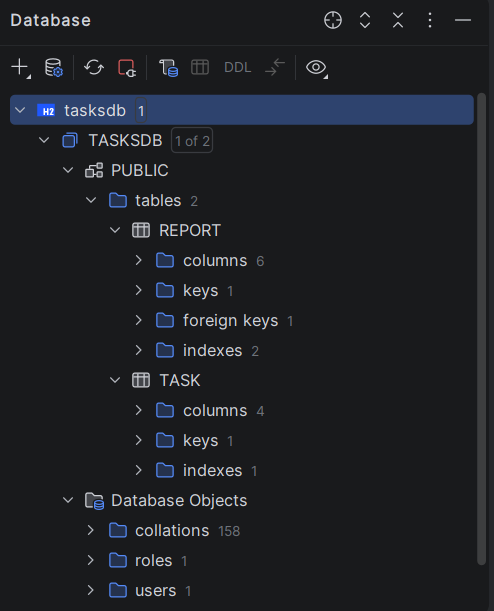
Project library and configuration addition
To activate JPA in a Spring Boot application there must be spring-boot-starter-data-jpa dependency added, as well as JDBC driver for H2. Spring Boot configures by default Hibernate to use JPA.
In pom.xml should be added:
<dependency>
    <groupId>org.springframework.boot</groupId>
    <artifactId>spring-boot-starter-data-jpa</artifactId>
</dependency>

<dependency>
    <groupId>com.h2database</groupId>
    <artifactId>h2</artifactId>
    <scope>runtime</scope>
</dependency>
2. Introduction to H2 data storage and access types
H2 is a relational database written in Java for local development, training and testing. It offers different types of data storage and access types which are chosen depending on application needs.
-
data storage types define id the data is lost on application shutdown or they are stored on disk;
-
access modes define how application or external clients are connected to the database - directly in the application or via separate process (TCP).
Each type and mode has specific JDBC URL which is used for connection configuration. In a Spring Boot application this JDBC URL is defined in application.properties file while in case of H2 console or IntelliJ Data Source there is connection form input field.
3. Data storage types
In-Memory database
-
data is stored completely in operational memory
-
data dissappears when the application is shutted down
-
very fast thus useful for testing and demonstrations
-
does not create physical file.
Examplary JDBC URL: jdbc:h2:mem:testdb
URL components:
jdbc– JDBC connection usageh2– type of databasemem– in-memory storagetestdb– database name
Note This URL is placed as property value for spring.datasource.url from application.properties file (or is entered in form in case of Console/Data Source).
File-Based database
-
data is stored as physical file in the local system
-
data is stored inbetween different application runs
-
suitable for local development
Examplary JDBC URL:
jdbc:h2:file:./data/tasksdb
URL components:
jdbc– JDBC connectionh2– database typefile– data is stored in file./data/tasksdb– file location regarding project
4. H2 access modes
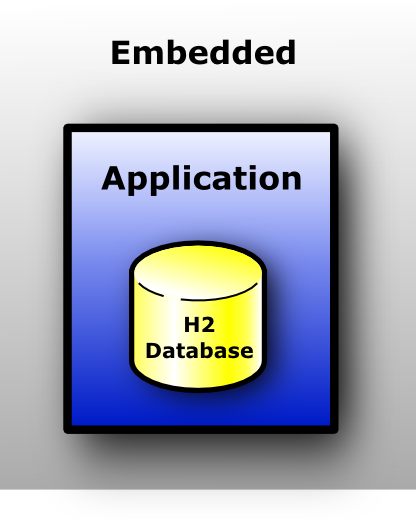
Embedded mode
- database works inside the application
- doesn’t need separate server
- direct management through JDBC done by application
- could be used both for in-memory and file-based storage.
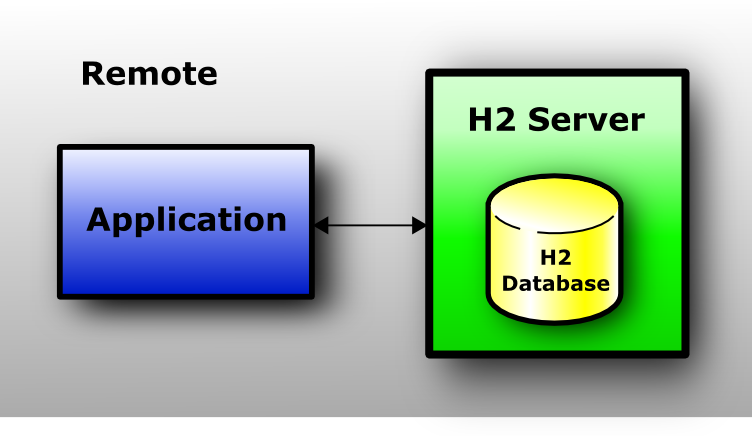
Server mode
- H2 starts as separate process listening to TCP port
- allows simultaneous connection of multiple clients
- could be used both for in-memory and file-based storage.
Examplary JDBC URL:
jdbc:h2:tcp://localhost/~/tasksdb
Компоненти:
jdbc– JDBC connectionh2– database typetcp– network connectionlocalhost– server address~/tasksdb– database location
Mixed mode
- combines Embedded and Server access modes
- application has direct local access and external clients could connect by TCP
- mode implementation requires AUTO_SERVER=TRUE to be added to database location address: jdbc:h2:mem:testdb;AUTO_SERVER=TRUE
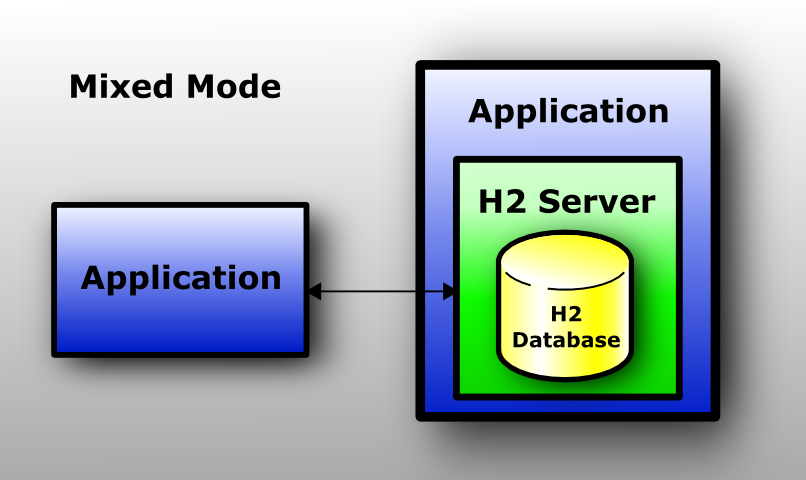
Mixed mode allows simultaneous local access and sharing between applications.
5. Spring Boot configuration for file-based + embedded
Following properties should be added in file src/main/resources/application.properties:
spring.datasource.url=jdbc:h2:file:./data/tasksdb;AUTO_SERVER=TRUE
spring.datasource.driverClassName=org.h2.Driver
spring.datasource.username=padawan
spring.datasource.password=R2D2c3pO

spring.jpa.properties.hibernate.dialect=org.hibernate.dialect.H2Dialect
spring.jpa.hibernate.ddl-auto=update
-
spring.datasource.url=jdbc:h2:file:./data/tasksdb
Defines database location, type (H2) and storage type (file-based). The file is created in./dataof the project. This URL is also used both by Spring Boot on connection establishment, and by H2 Console / Data Source in IntelliJ for database work. -
spring.datasource.driverClassName=org.h2.Driver
Defines H2 JDBC driver used by Spring Boot for database connection. -
spring.datasource.username=padawan
Inital H2 database user creation is done by the configuration and has admin rights. -
spring.datasource.password=R2D2c3pO
Allows working without password in local environment. In order of server protection, using password is mandatory. -
spring.jpa.properties.hibernate.dialect=org.hibernate.dialect.H2Dialect
Defines H2 SQL dialect used for Hibernate thus allowing correct SQL command generation. -
spring.jpa.hibernate.ddl-auto=update
Declares how Hibernate controls database scheme: checks, creates or updates tables according to entity classes (updateadds changes without data deletion).
JDBC URL is defined here in order to be used by Spring Boot on application start. H2 Console and IntelliJ Data Source use the same URL for database interactions.
6. Database scheme management
The property spring.jpa.hibernate.ddl-auto defines how Hibernate manages database scheme.
| Value | Description | When to use |
|---|---|---|
validate | Checks if existing scheme corresponds to entity classes | If the databased is externally managed |
create | Creates scheme on start, removes previous data | Tests and initial development |
create-drop | Creates scheme on start, removes scheme on shutdown | Temporal tests |
update | Adds new changes to the already existing scheme without data deletion | Local development with persistent data |
7. H2 Console and Data Source in IntelliJ
There are different ways to access and work with H2 Database Engine:
- H2 Console – embedded web interface activated by corresponding configuration.
- External databsae clients (as Data Source в IntelliJ IDEA) – tools for database interactions via standard JDBC connection.
These approaches allow structure and database content overview as well as execution of diiferent SQL queries, but they differ in access and available functionalities.
7.1. H2 Console
H2 Database Engine is ebedded web interface accessible through browser.
Dependency should be added in pom.xml to allow its usage:
<dependency>
    <groupId>org.springframework.boot</groupId>
    <artifactId>spring-boot-h2console</artifactId>
</dependency>
Application configuration should be also modified:
-
spring.h2.console.enabled=true
Activates the console. -
spring.h2.console.path=/h2-console
Defines path to the web interface - the console is accessible via application address combined with that path (http://localhost:8080/h2-consolefor example).
Once these modifications are done, there are few more steps:
- start the application (Embedded Tomcat listens at port 8080).
- open the browser:
http://localhost:8080/h2-console - fill the form:
- JDBC URL:
jdbc:h2:file:./data/tasksdb - User Name:
padawan - Password:
R2D2c3pO
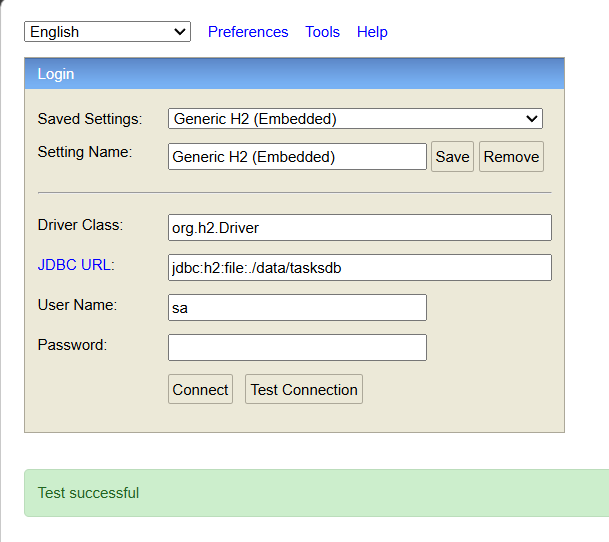
- JDBC URL:
</p>
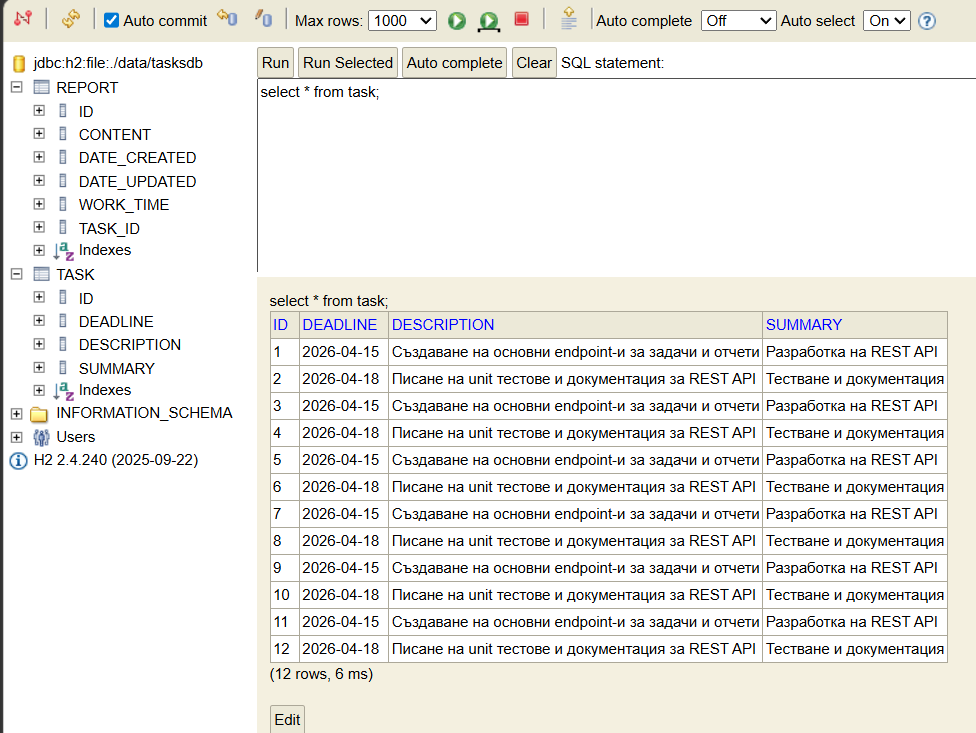
- press Connect
- all tables are visible and SQL queries could be performed:
7.2. Data Source in IntelliJ Ultimate
- Open Database tool window → + → Data Source → H2
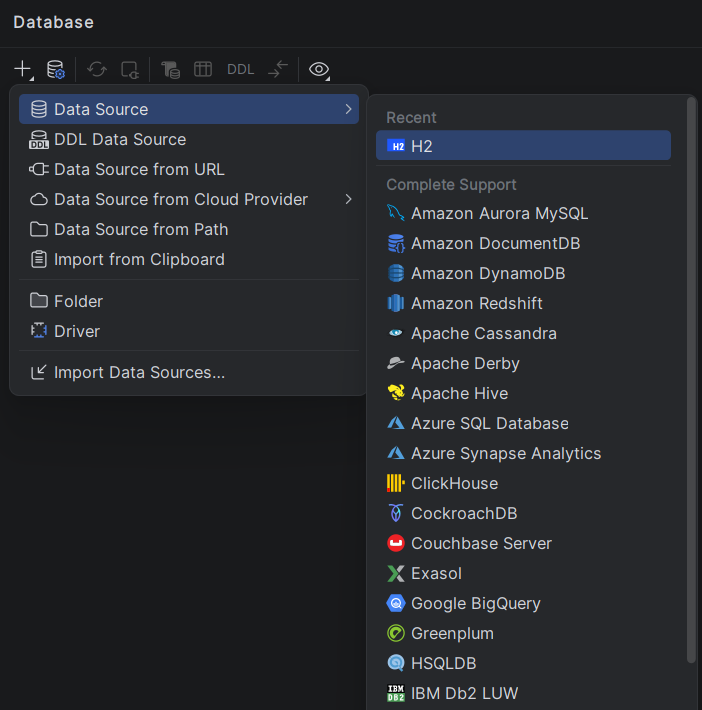
- Enter:
- URL:
jdbc:h2:file:./data/tasksdb - User:
padawan - Password:
R2D2c3pO
- URL:
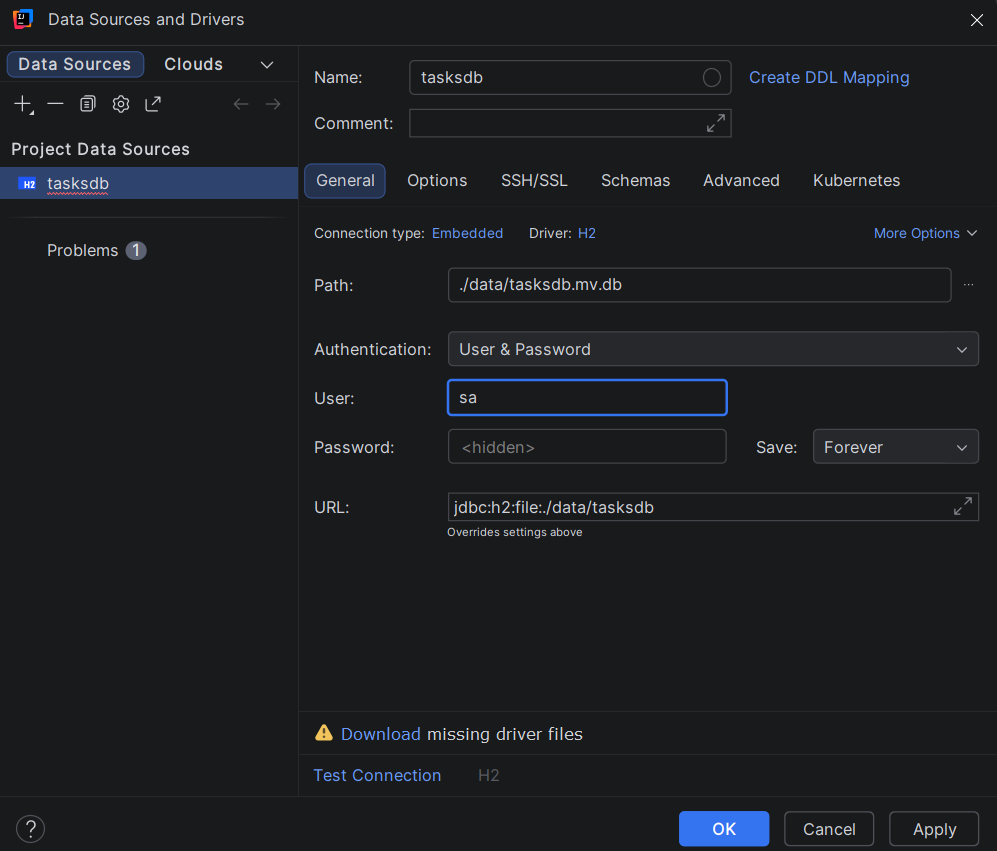
- if necessary, required drivers should be downloaded; then press Test Connection → OK to check connection; OK should be presed again for connection.
- tables and SQL pannel are available.